
Settings
Settings holds the personal options everyone has. Administrators run the workspace from Admin in the sidebar: an Overview with a setup checklist, then People, Phone system, AI, Data & compliance, Apps & integrations and Billing, each with tabs. Rarely needed options sit under Advanced.
1Personal
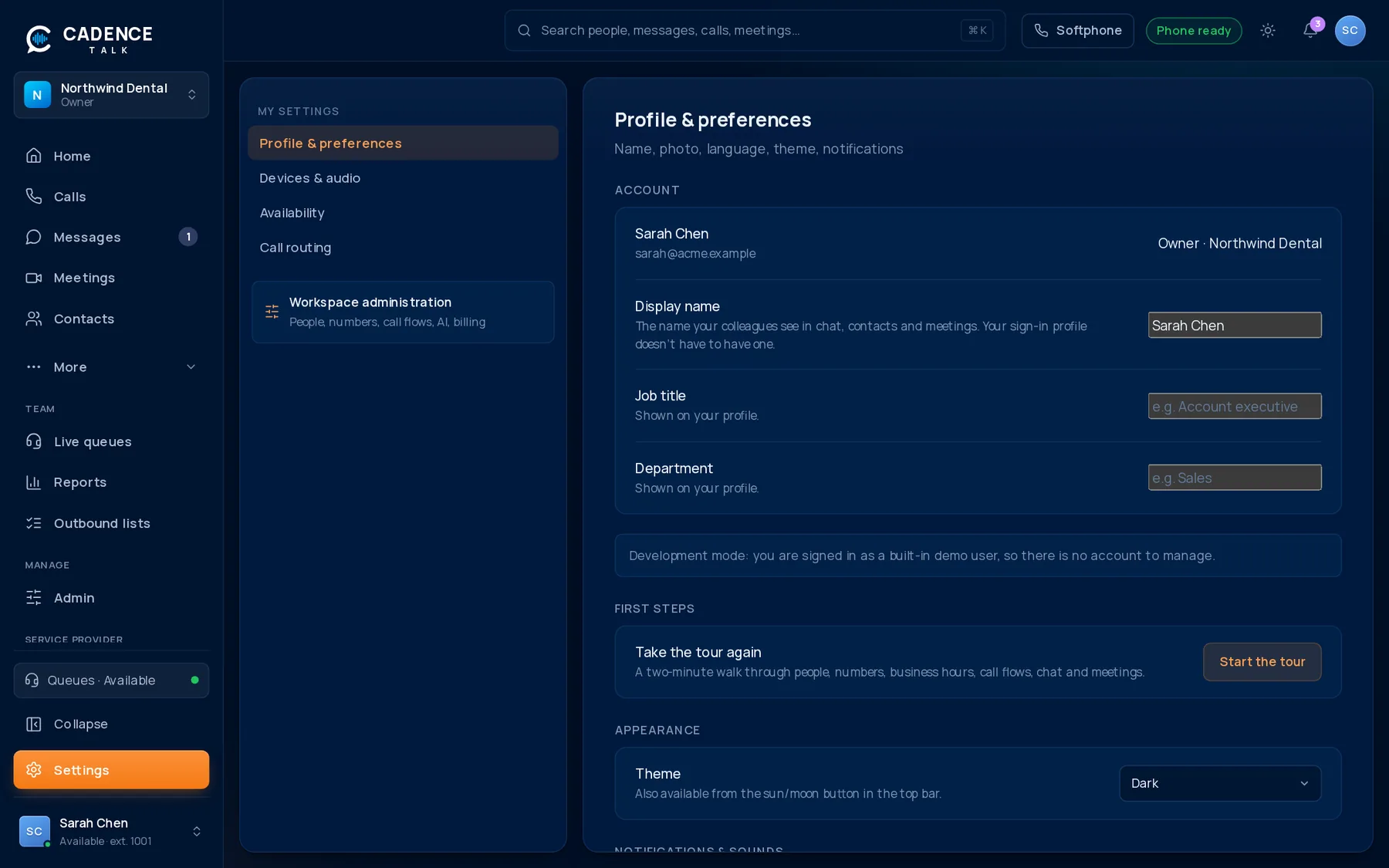
Profile & preferences
Your name, photo, job title, theme, and which notifications and emails you want.
Devices & audio
Choose your headset, microphone and speakers, and ringtones.
Availability
Your status, and a do-not-disturb schedule.
Call routing
Where your calls ring or forward, and your voicemail greeting.
2Business hours
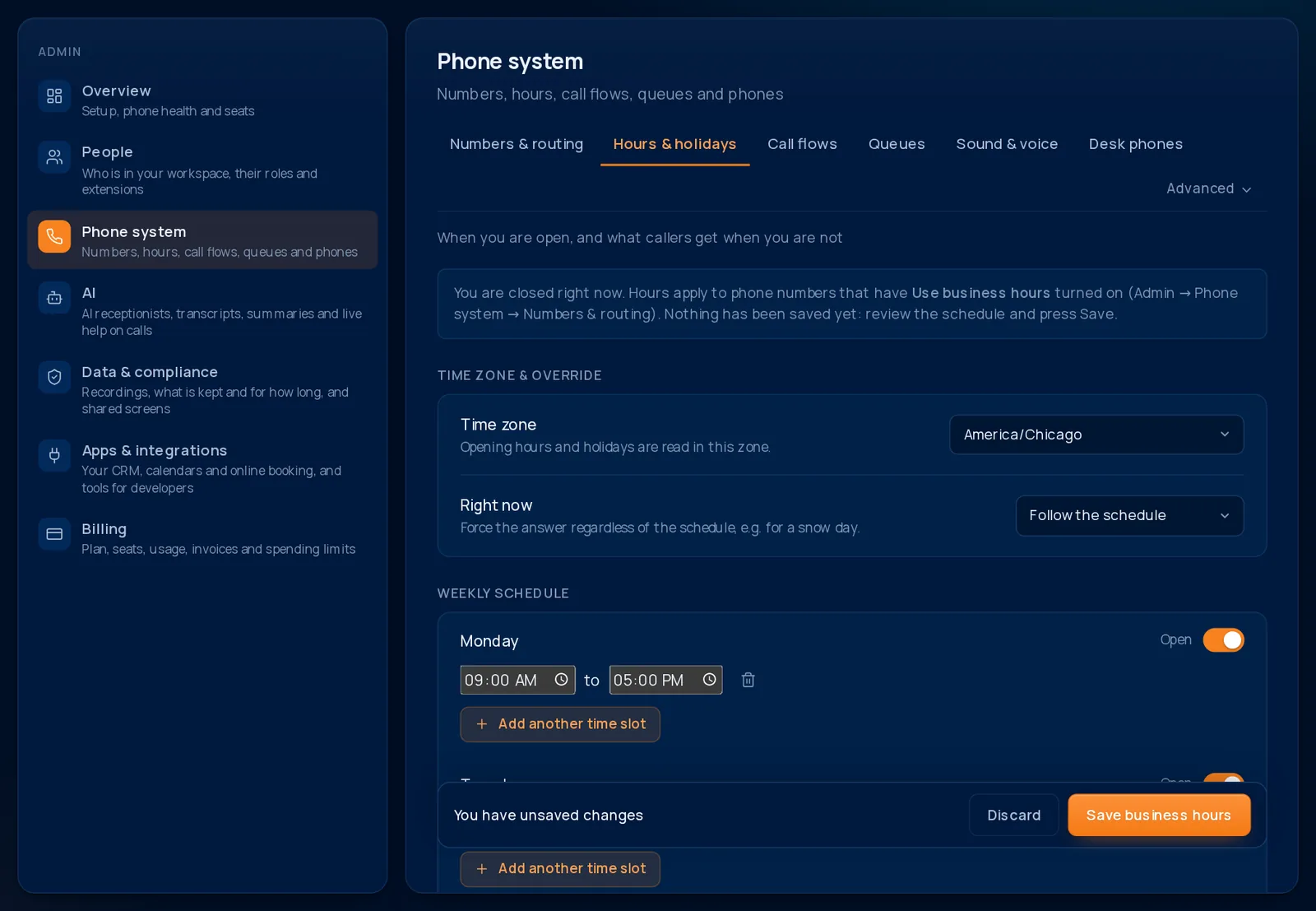
Set the hours you are open, per day, with your time zone and holidays. Flows and numbers use them to decide whether to ring the team or take after-hours routing.
- Per-day opening times.
- Holidays and one-off closures.
- A manual override to force open or closed.
3Numbers & lines
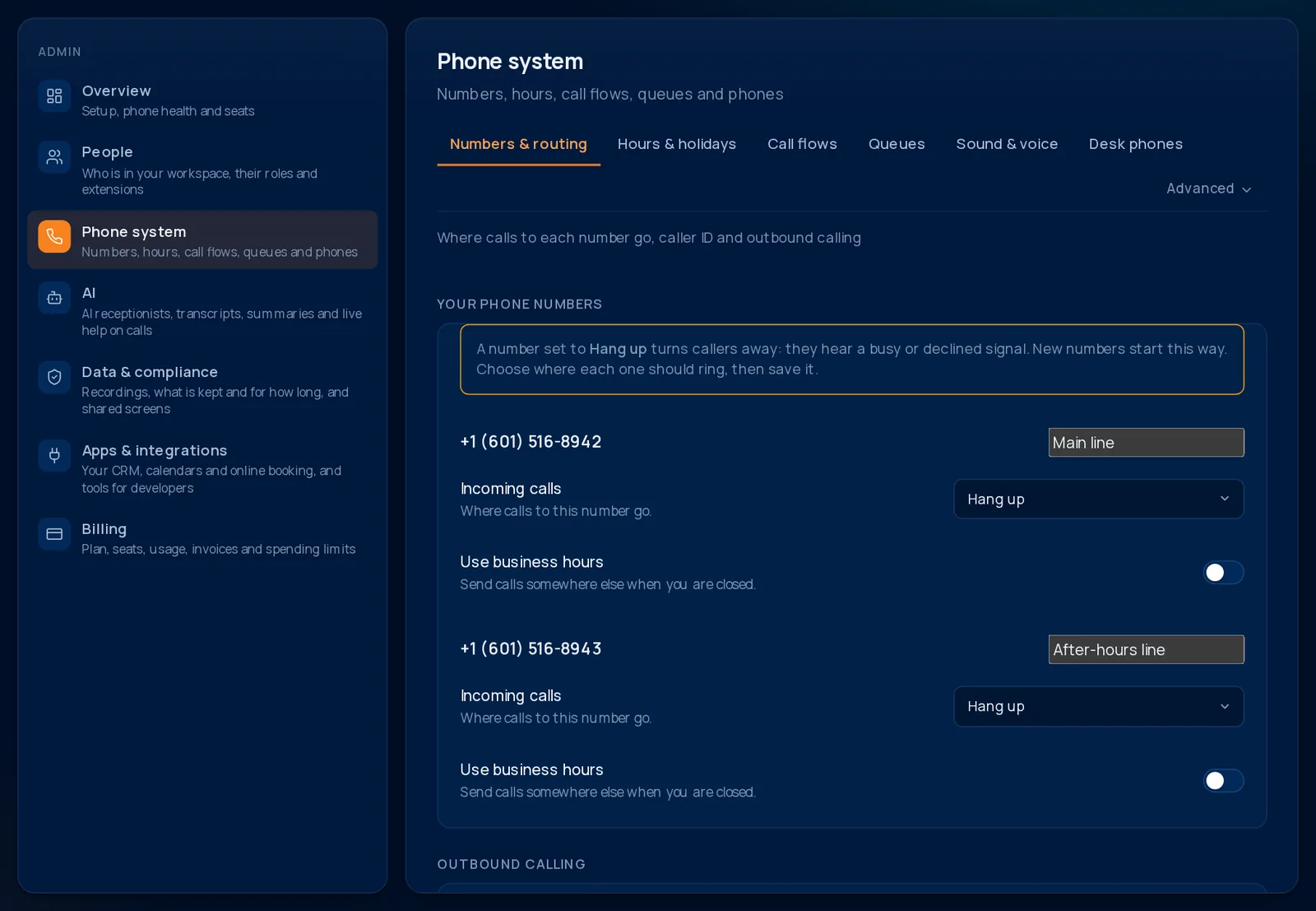
See the business numbers on your account and choose what each one does when it rings: an extension, a queue, a call flow or an AI agent, with a separate choice for after hours.
- Caller ID for outgoing calls.
- Different handling inside and outside business hours.
4Audio library and voice
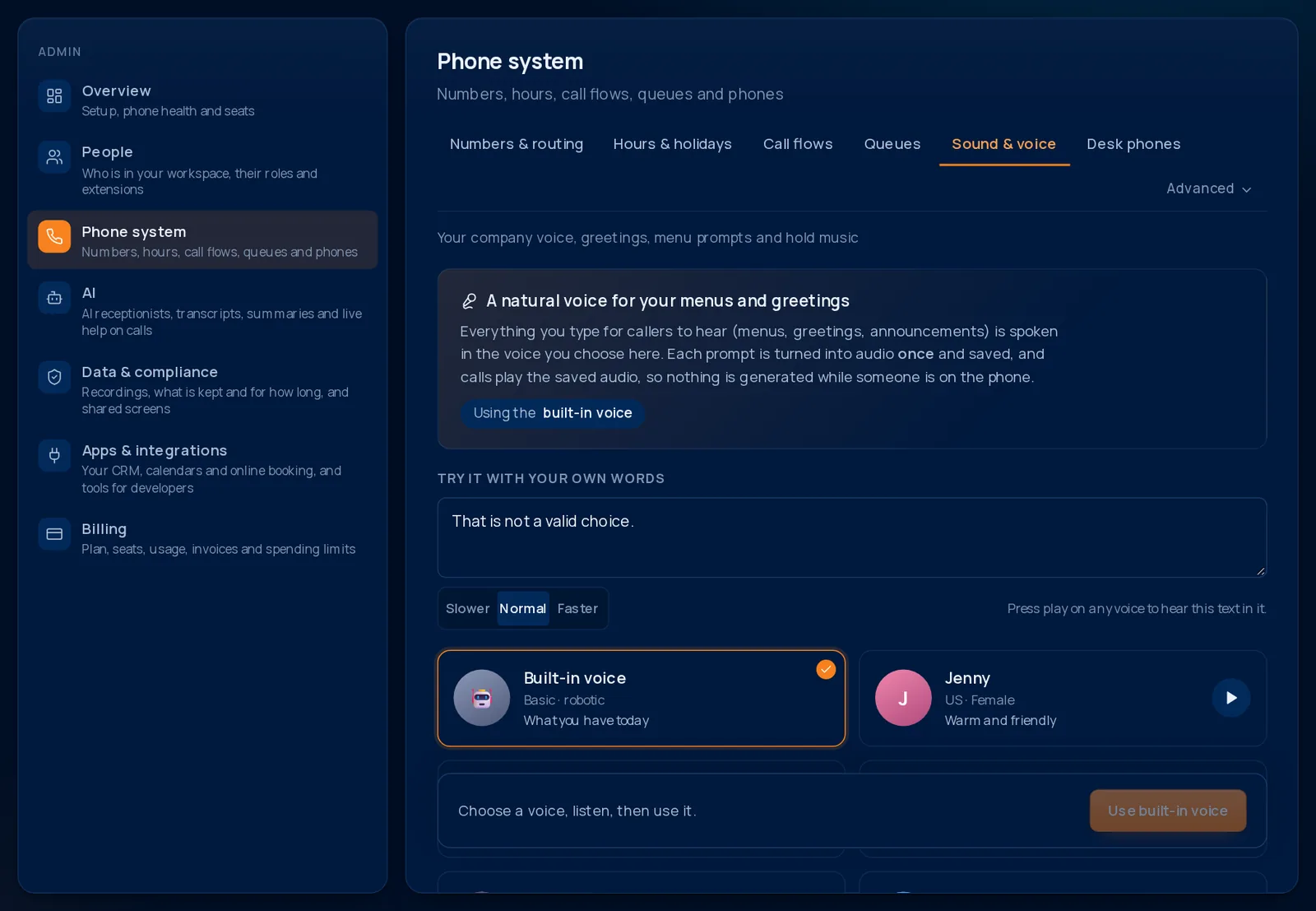
The Audio library holds your greetings, menu prompts and hold music. Upload a recording, or use text.
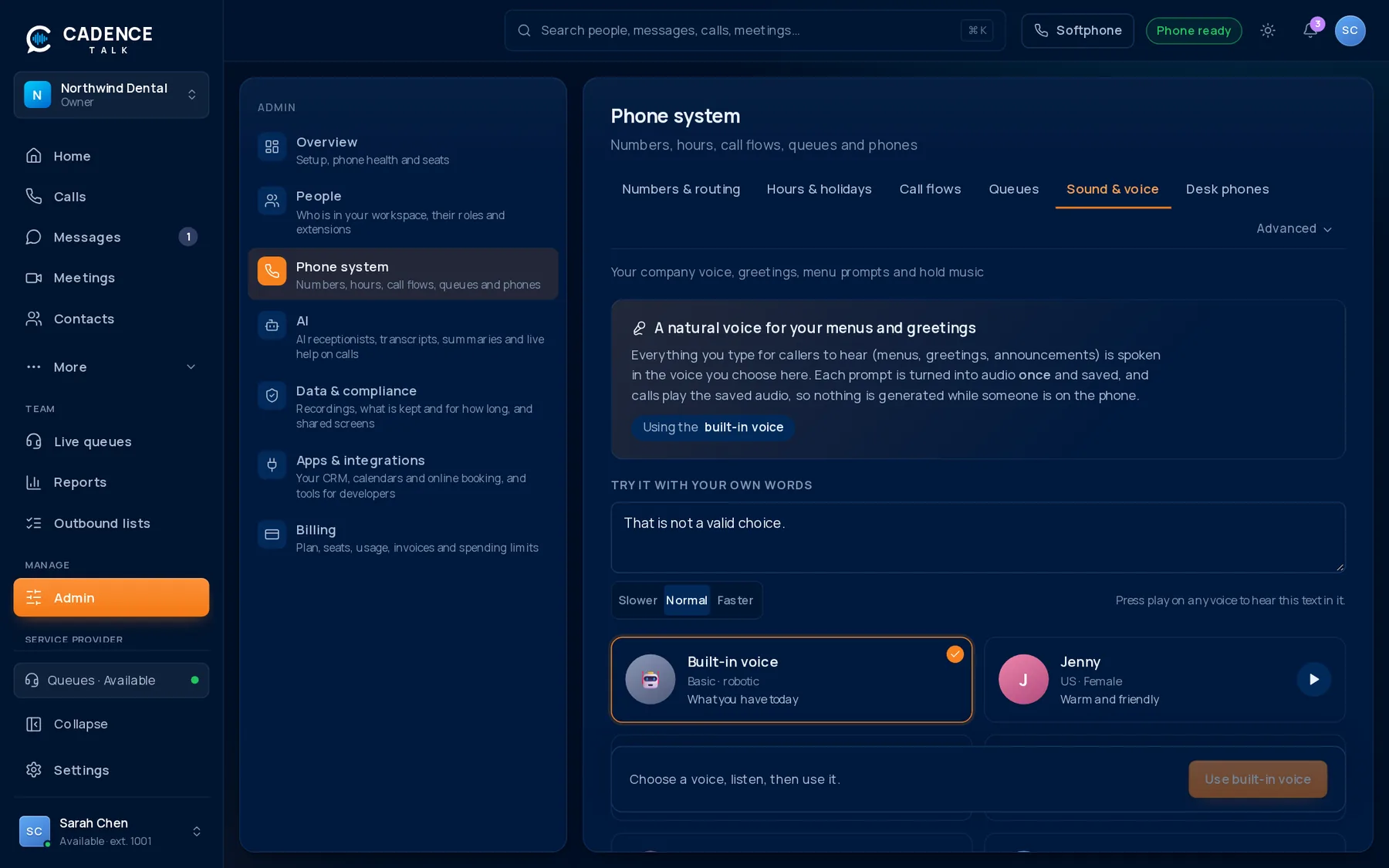
Under Voice, choose the natural voice that speaks your typed menus and greetings, and hear it say your own words before you save it. Cadence Talk records each prompt once and reuses it.
5Users & roles
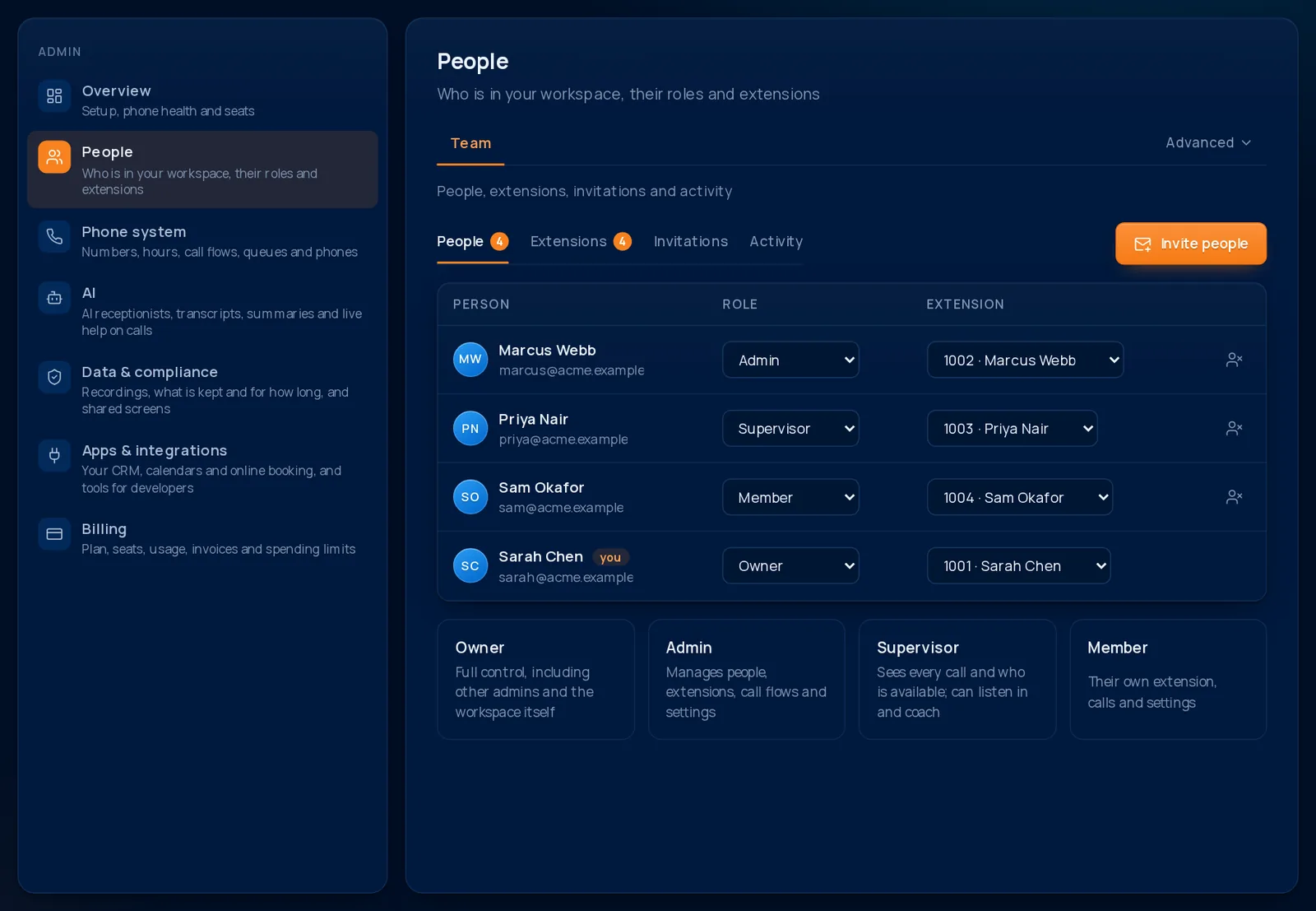
Invite people by email, choose their role, and give each person an extension. See recent activity in the audit log.
- Member, Supervisor, Admin and Owner roles.
- Remove or change someone at any time.
- Invitations by email.
6Plan, billing and spending limit
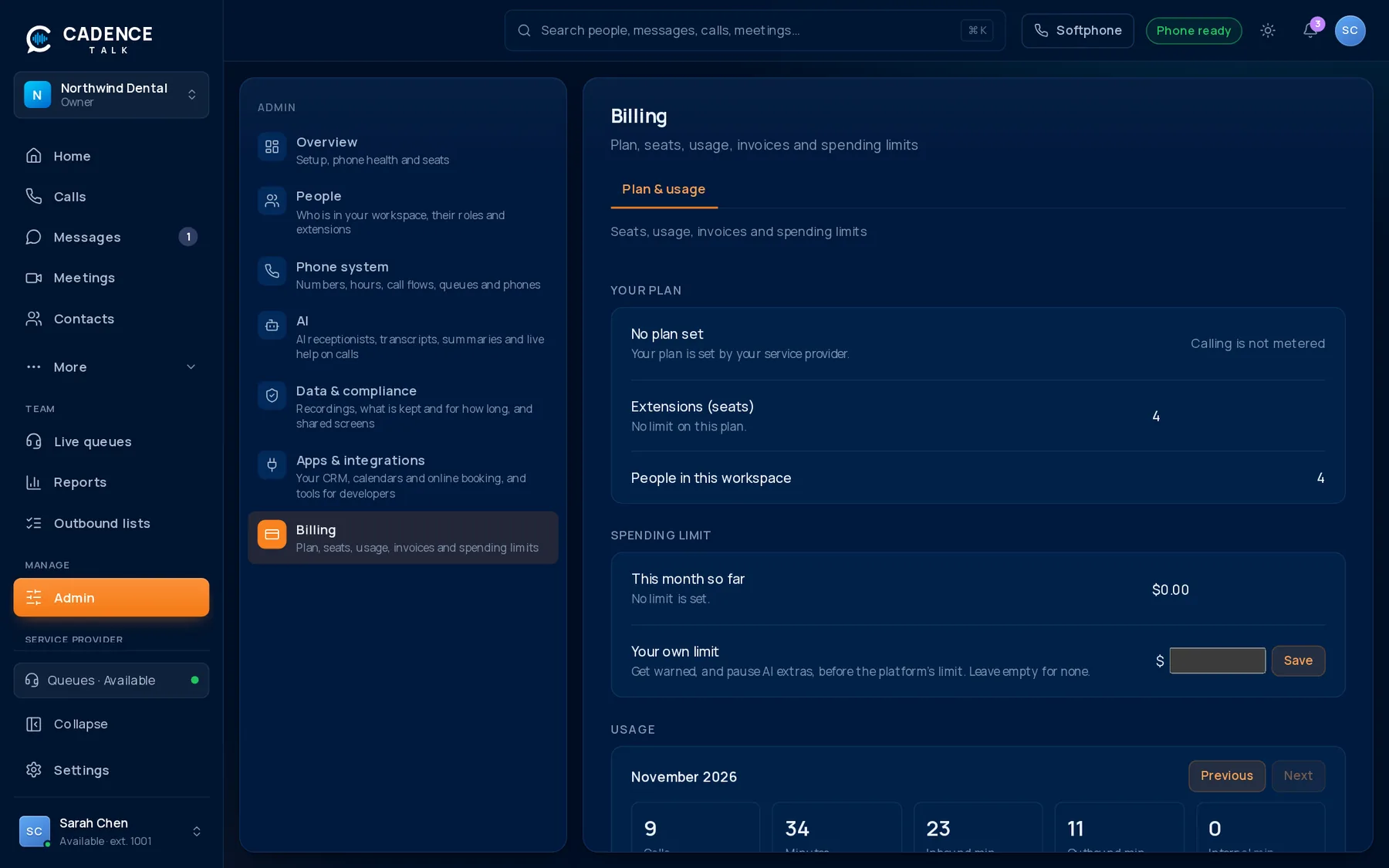
Under Plan & billing admins see seats and usage. If your provider has set a monthly spending limit, a meter shows what has been used so far this month. At 80% you are warned, and at the limit the extras that cost per use (AI voice agents, newly generated voices and transcription) pause until next month or until the limit is raised. Calls are never affected.
- Owners can set a lower limit of their own for extra peace of mind.
- You get a bell notification when you near and reach the limit.
- If calls to outside numbers are ever paused for suspicious activity, it says so here.
7Chat and AI
- Chat: how long messages are kept, and file storage.
- AI & transcripts: call summaries, live transcription, how long they are kept, and the meeting AI assistant. See AI call summaries.
- Live assist: the knowledge and checklist people see on calls. See Live assist.